Review annotated images in Meshlabel
365mesh labels every object in your images — bags, cardboard, packaging and more. As a reviewer you can browse every image and its labels, check the results, and leave comments for our team. This guide walks you through it in about five minutes.
Filter by class, split and file name
Highlight objects and compare with the original
Leave comments — on the whole image or pinned to a spot
See dataset analytics
Uploading images
Approving images and exporting datasets
Everything in the labelling pipeline
1Getting access
You'll receive access in one of two ways. Either way, you only see the workspaces you've been invited to.
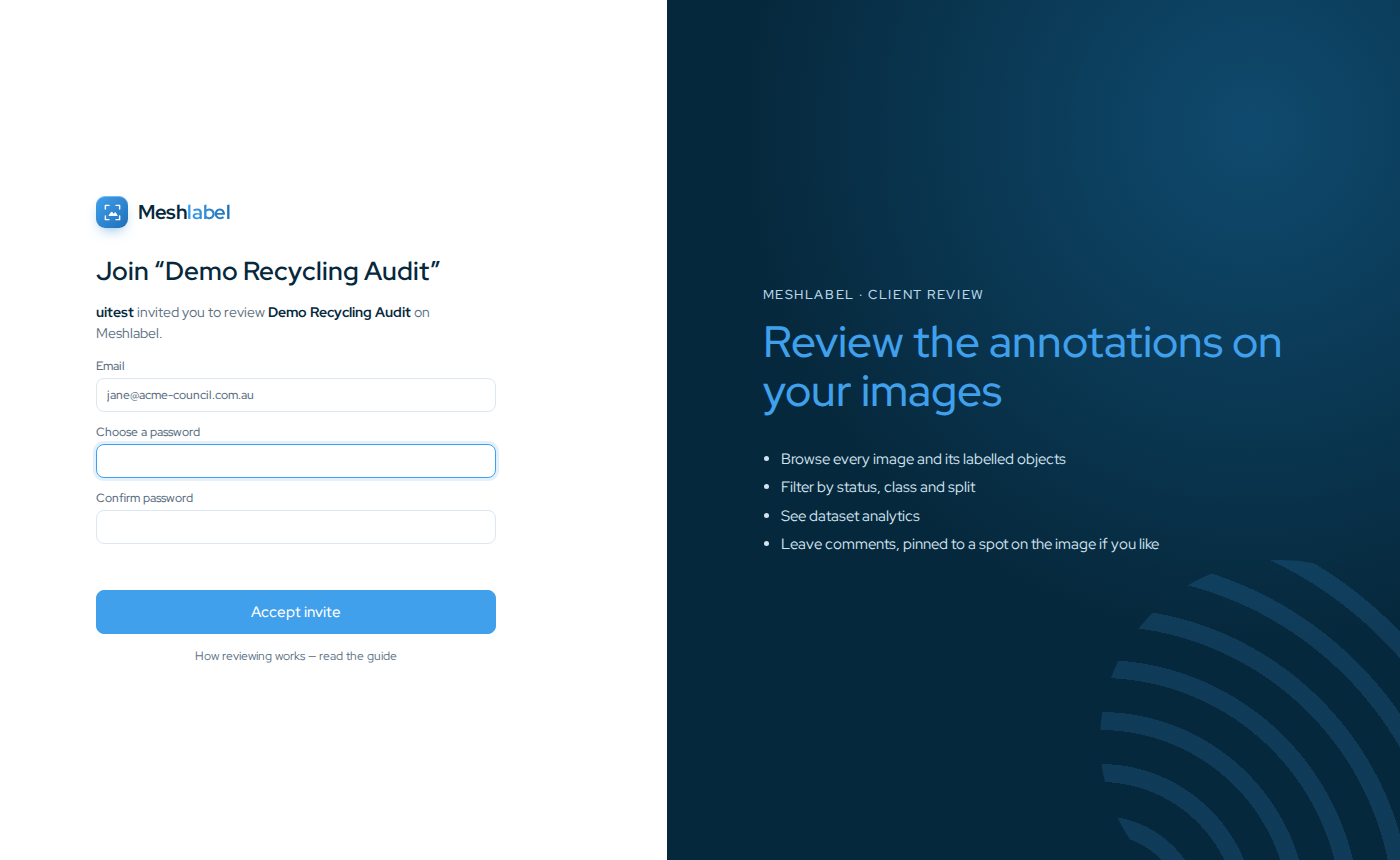
Option A — an invite link by email
- Open the link in the email from 365mesh. It looks like https://meshlabel.365mesh.com/invite/… and is valid for 14 days.
- Your email address is filled in. Choose a password (at least 8 characters) and confirm it.
- Click Accept invite — you're signed in and taken straight to your workspace.
Option B — a username and temporary password
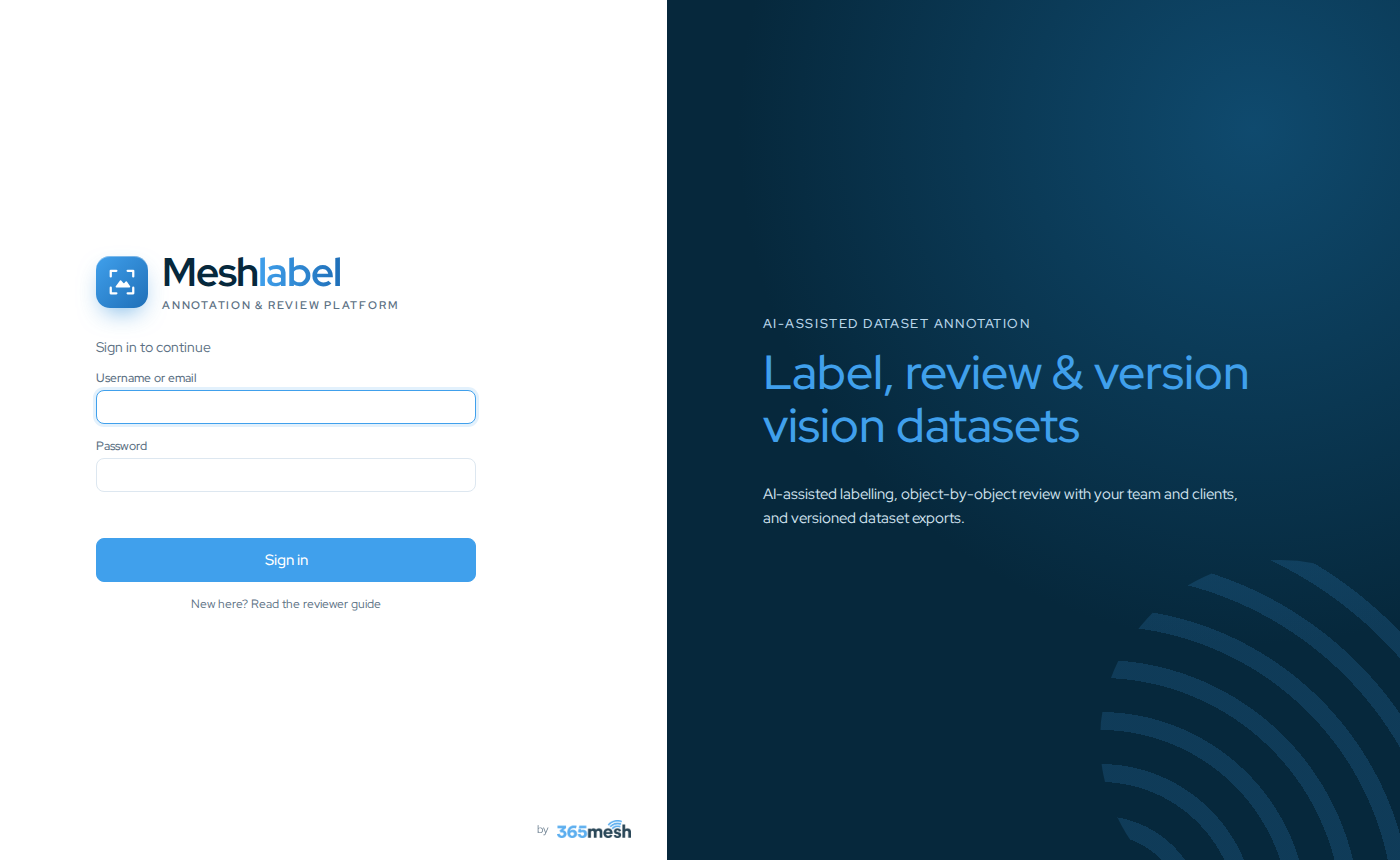
- Go to meshlabel.365mesh.com and sign in with the username and temporary password you were given.
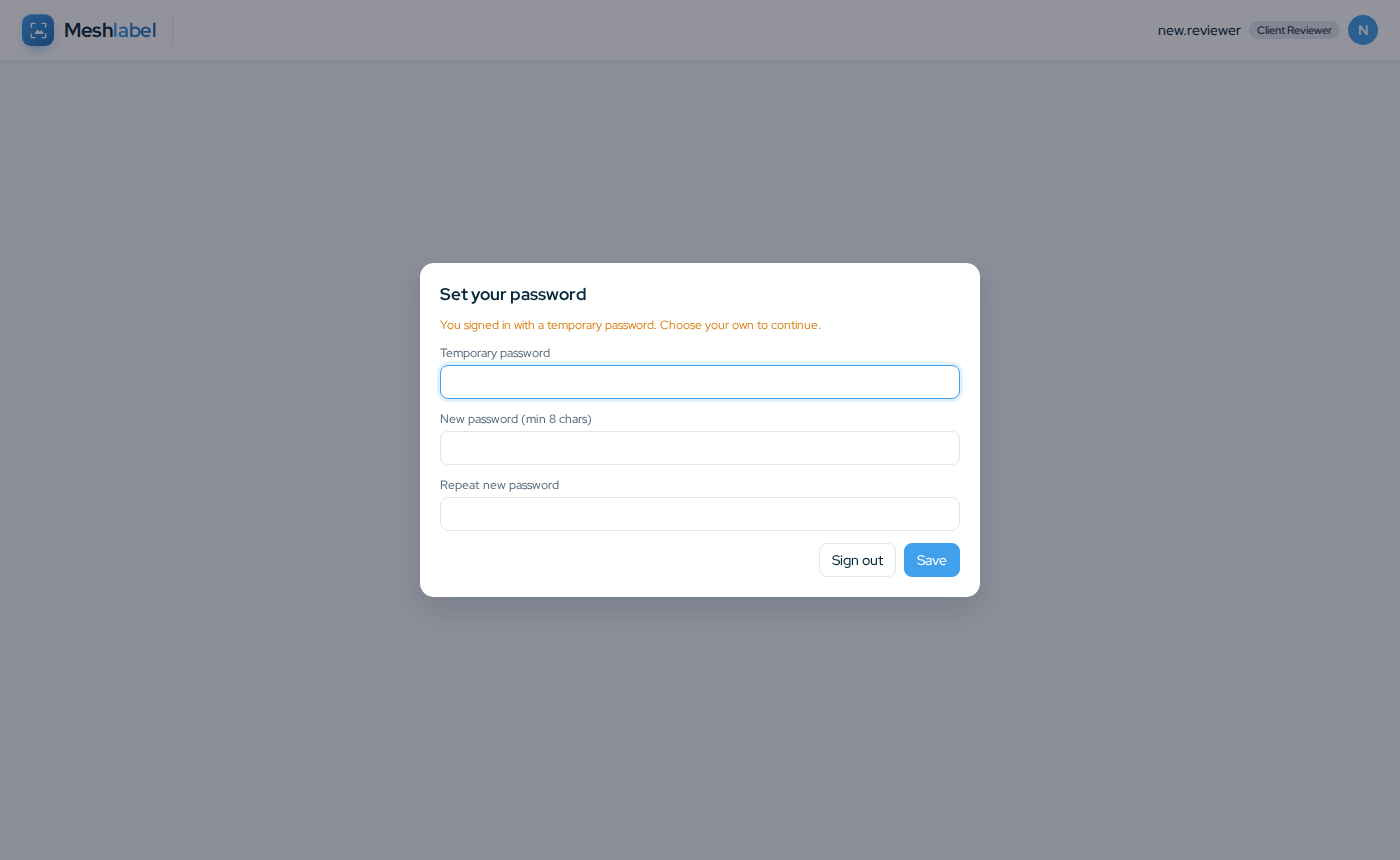
- You'll be asked to set your own password straight away. Enter the temporary password, then your new one twice, and click Save.
2Finding your images
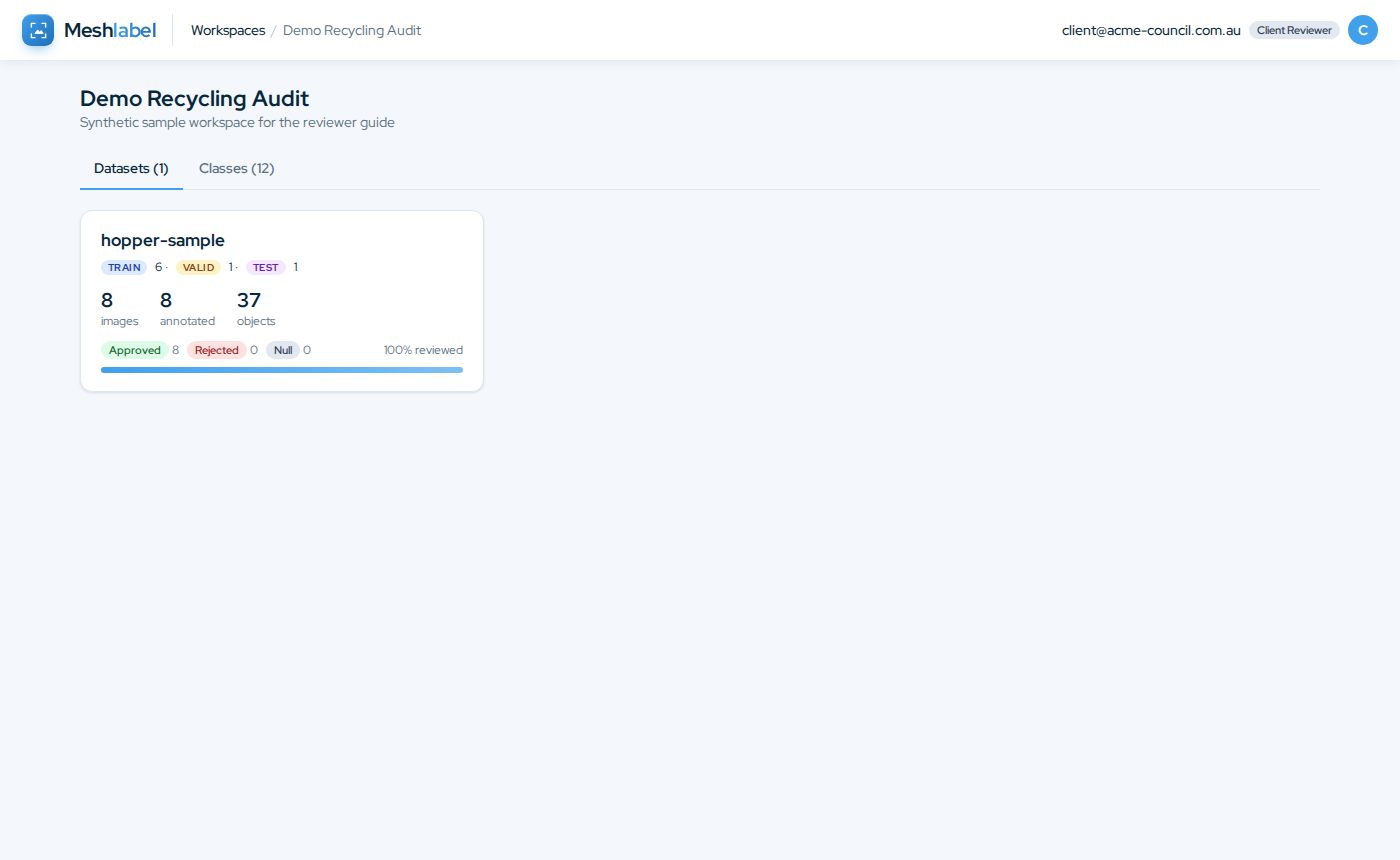
After signing in you land on Workspaces — one card per project you've been invited to.
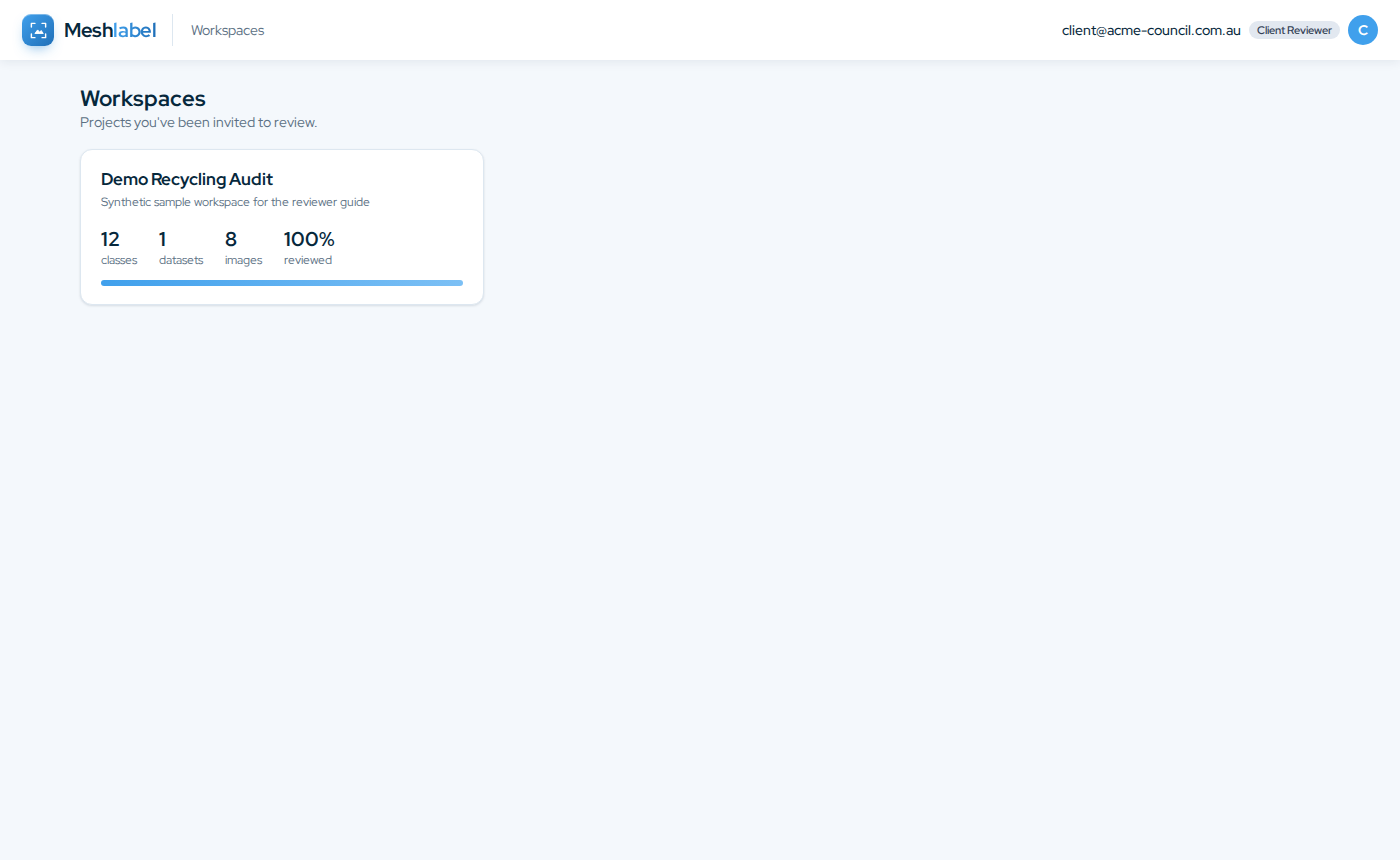
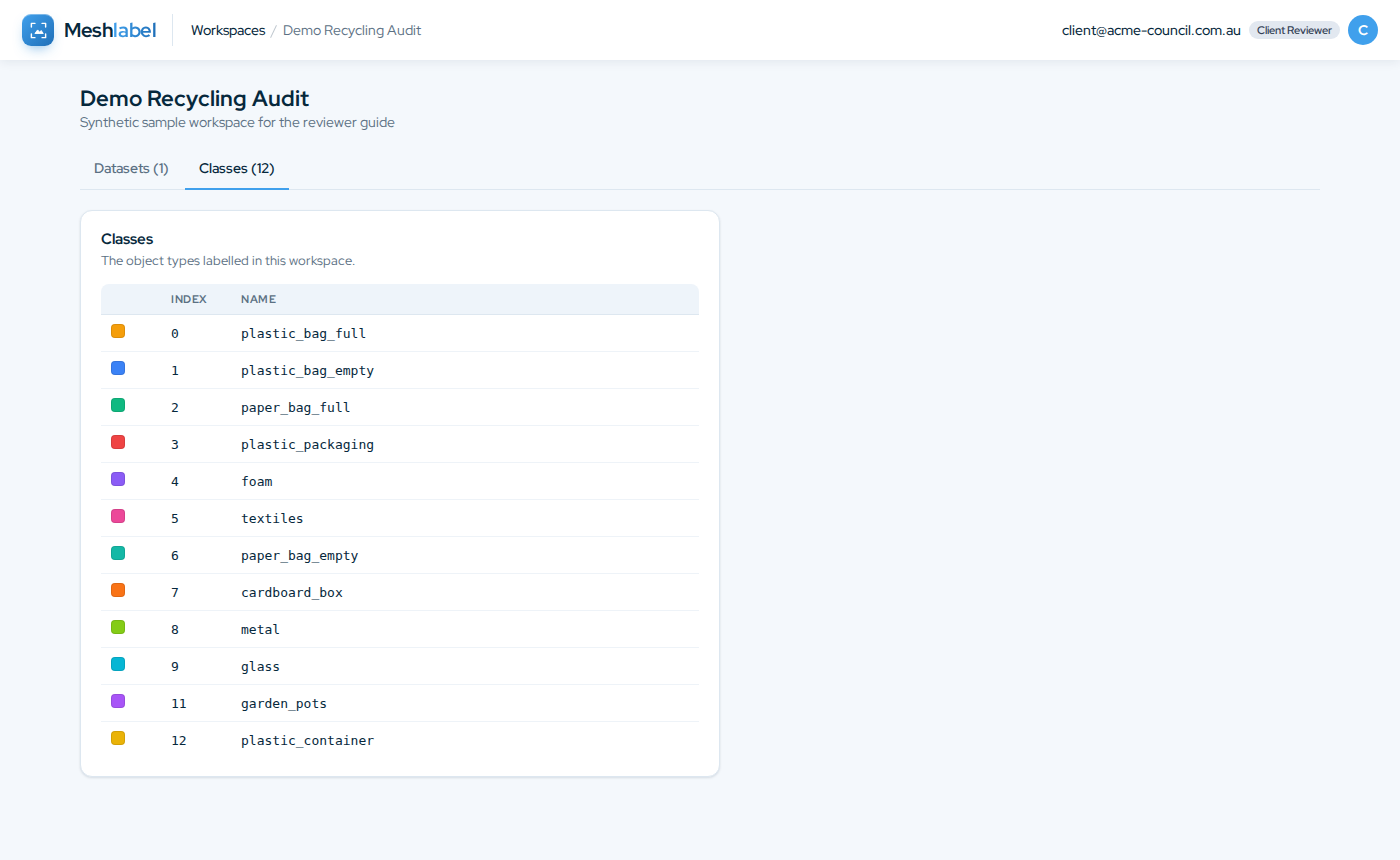
Open a workspace to see its Datasets (collections of images) and its Classes — the object types we label, each with its own colour. The same colours are used on every image.
3Browsing images
A dataset opens on its Images tab: a summary at the top (images and objects) and a grid of every image below.
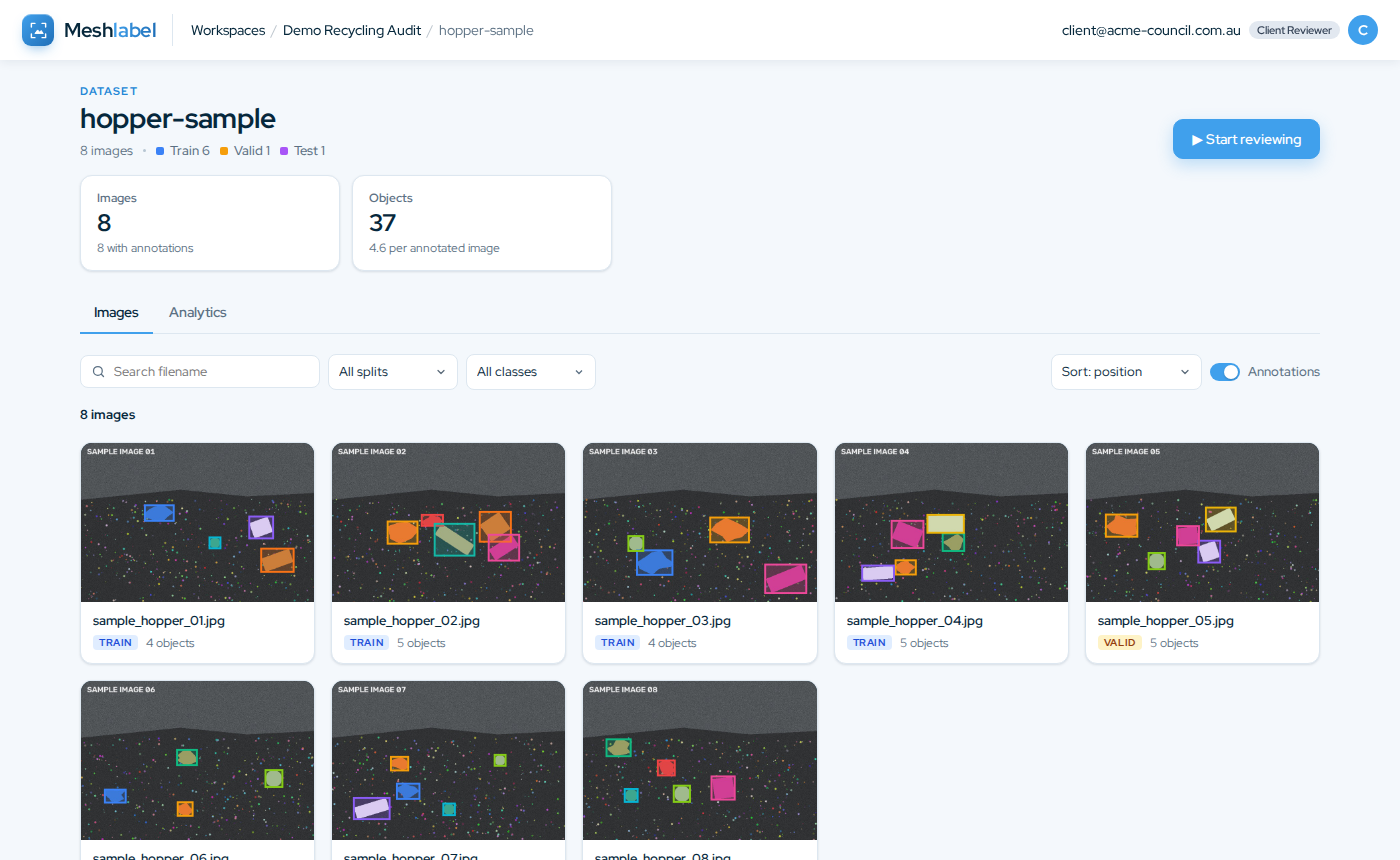
- Search filename — type part of a file name and press Enter.
- All splits — show only train, valid or test images (the groups used to train and evaluate the model).
- All classes — show images containing particular object types (see below).
- Sort — by position, newest, name or most objects.
- Annotations switch — draw the labelled objects on the thumbnails.
- Active filters appear as chips above the grid; click a chip's ✕ to remove it, or Clear all.
Filtering by class
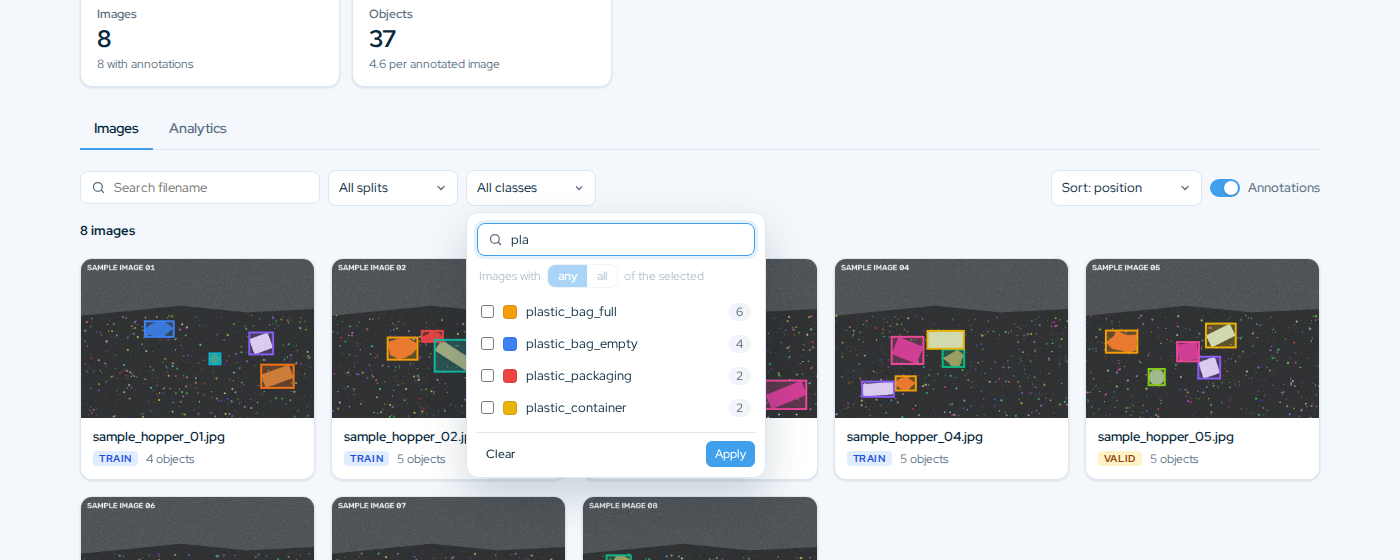
Open All classes to pick one or more classes. Each class shows how many images contain it. Type to search, tick the classes you want, and choose whether images must contain any of them or all of them. Click Apply (or click anywhere outside).
Click any thumbnail — or ▶ Start reviewing at the top — to open the image viewer.
4Reviewing an image
The viewer shows one image at a time with its annotations drawn on top. Each object has a coloured outline (its mask) and a dashed box, labelled with its class.
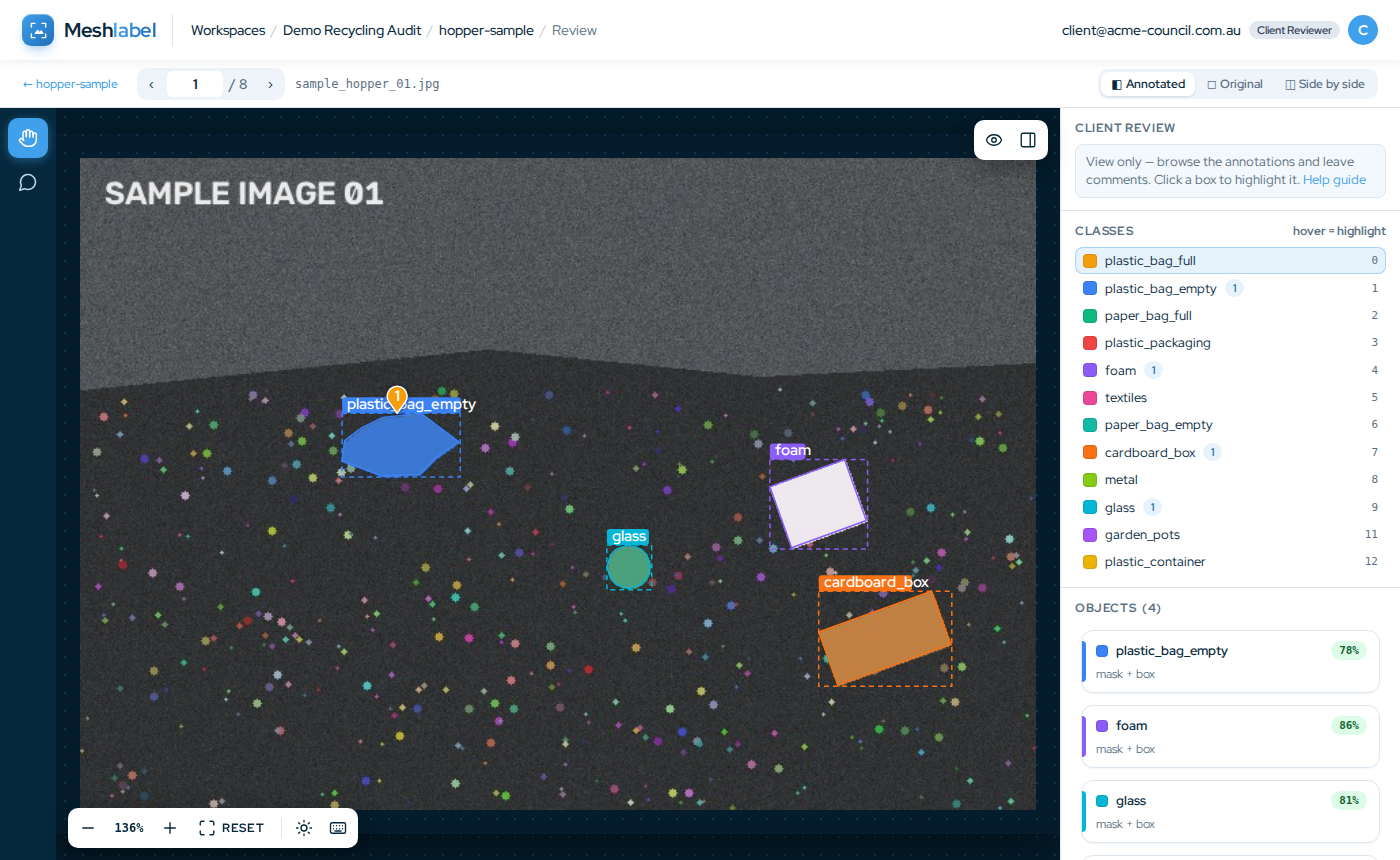
- Top bar — ‹ › move to the previous / next image (or use ← →); type a number to jump.
- View switch (top right) — Annotated, Original, or Side by side.
- Left toolbar — the hand (Drag) tool and the Comment tool.
- Bottom left — zoom out / in, Reset to fit, brightness & contrast, keyboard shortcuts.
- Classes (right) — each class with how many objects of it are on this image.
- Objects (right) — every object on the image with its class and confidence.
Moving around
- Zoom with the + / − buttons, the + / − keys, or Ctrl + mouse wheel (pinch on a trackpad).
- Pan by dragging empty space with the hand tool, or hold Space and drag.
- Reset (or F) fits the whole image back on screen.
- The sun icon adjusts brightness, contrast and mask opacity — for viewing only, nothing is changed.
Highlighting an object
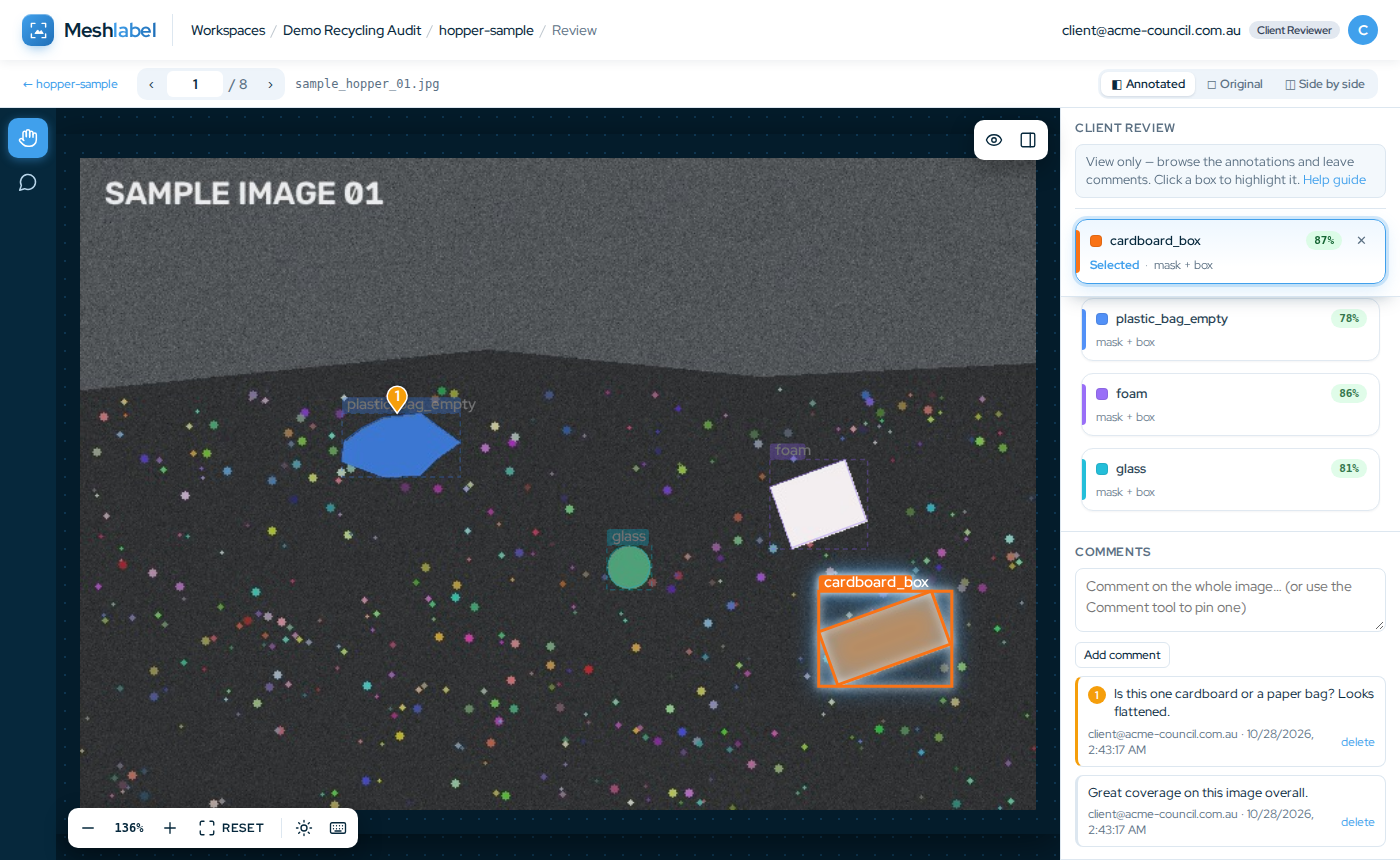
Click an object on the image (or its card in the Objects list) to highlight it. Everything else fades so you can inspect it, and its card is pinned at the top of the side panel. Click it again, press Esc or click ✕ to clear the highlight. Tab steps through the objects one by one.
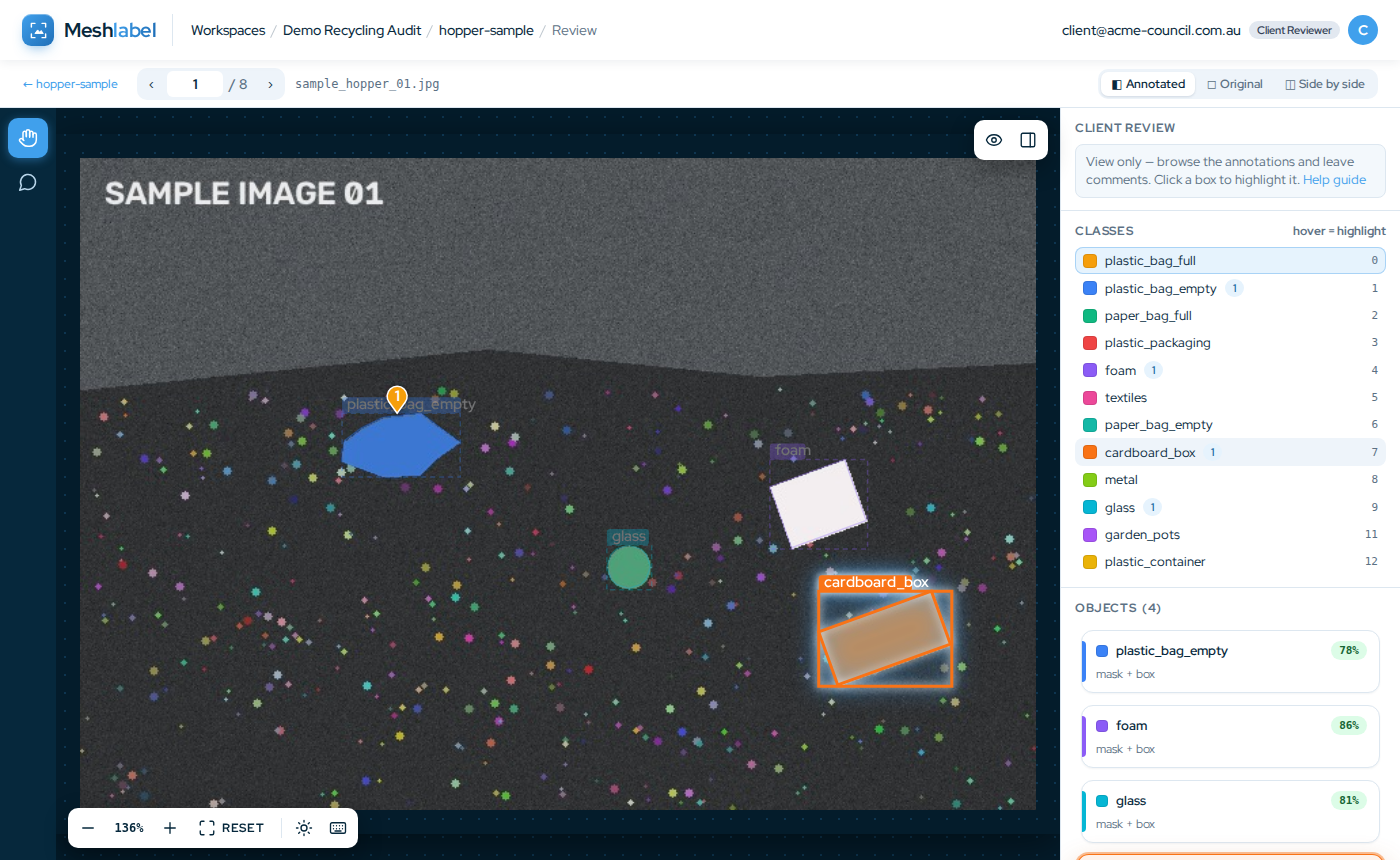
Hover over a class in the Classes list to light up every object of that class, and hover over a card in the Objects list to find that object on the image.
Comparing with the original
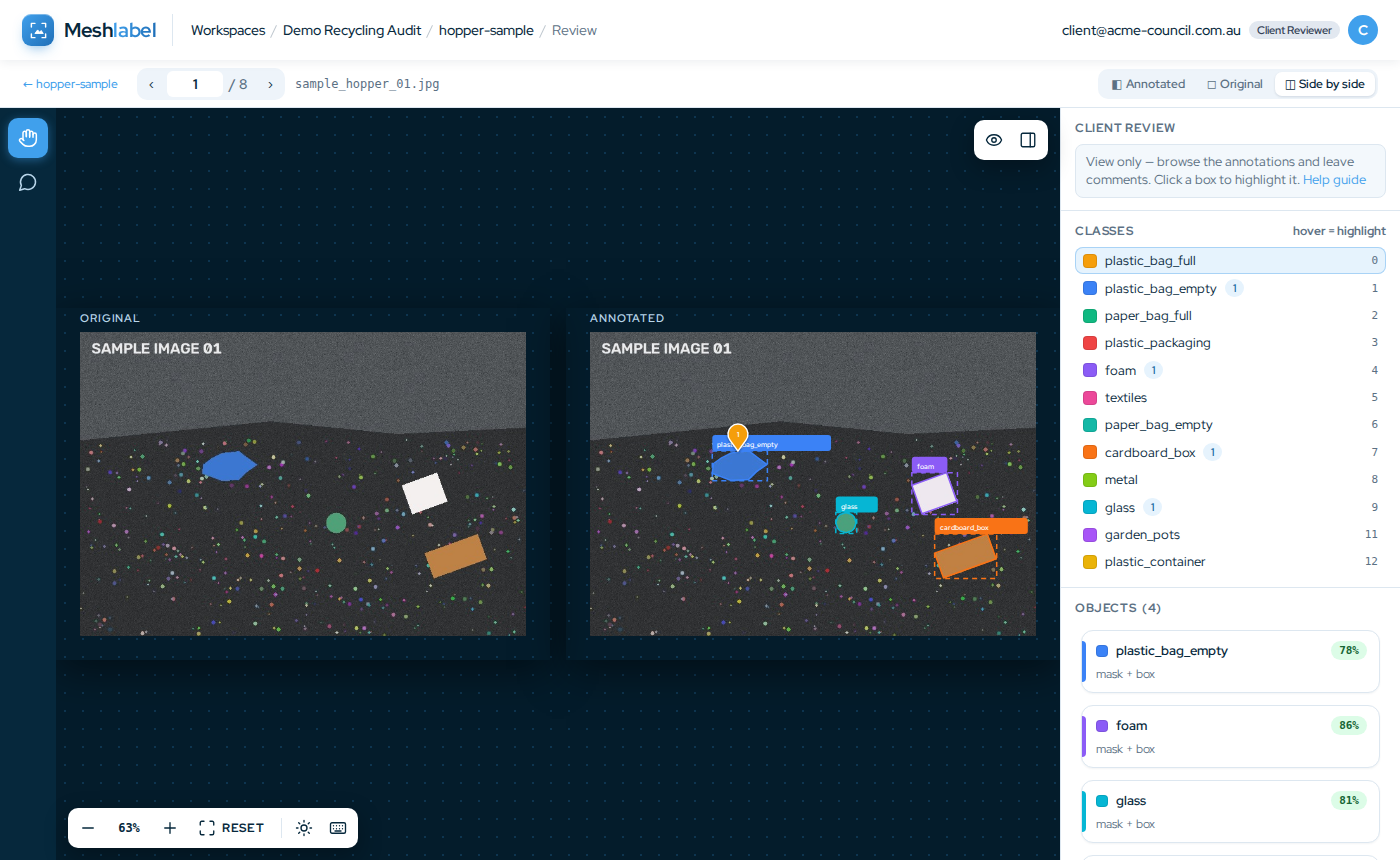
Use the view switch at the top right: Original hides the annotations (shortcut O), and Side by side shows the original next to the annotated image (shortcut Y). The eye button on the image does the same as O.
6Analytics
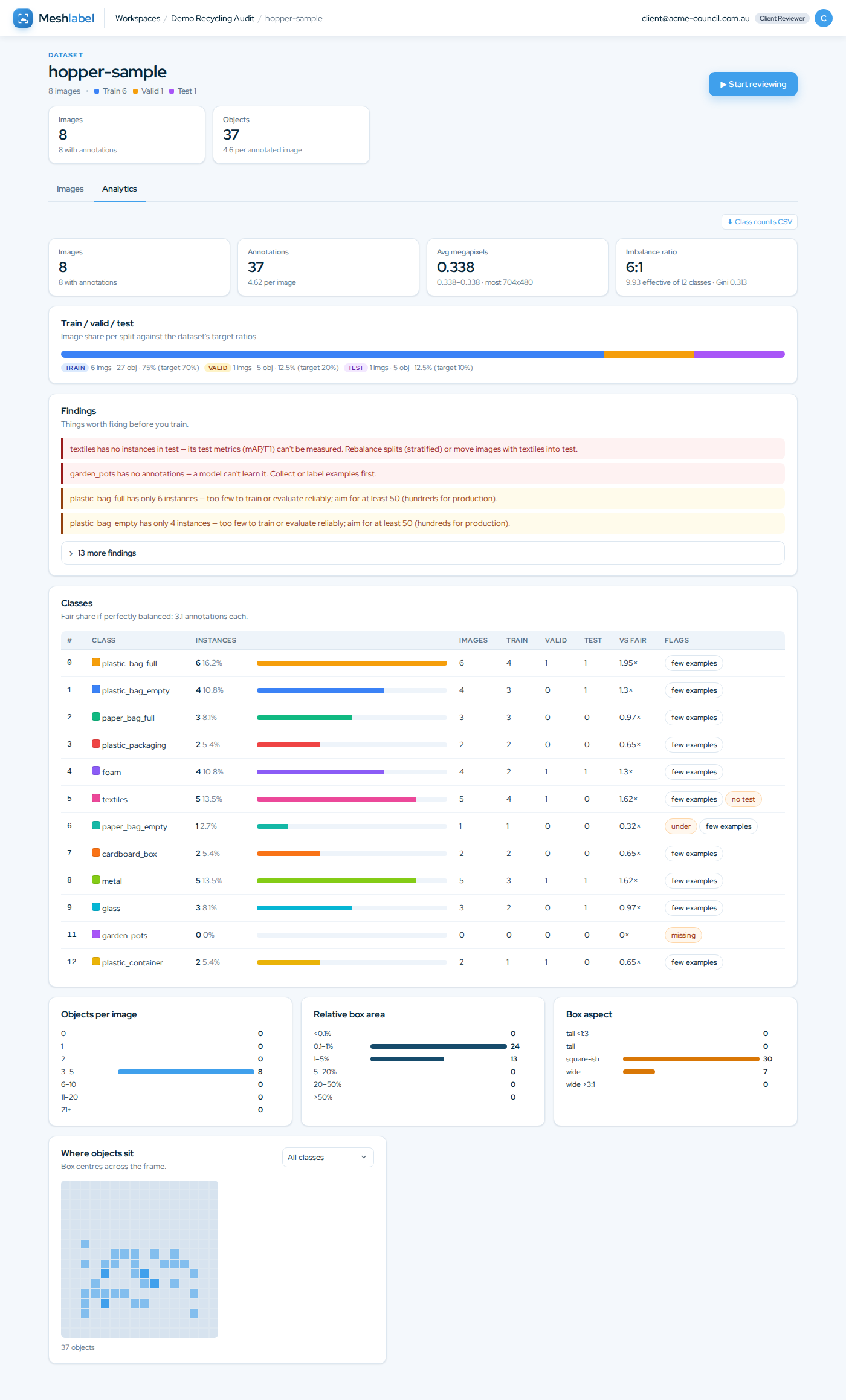
The Analytics tab of a dataset summarises everything that has been labelled.
- Summary tiles — images, annotations per image, image size, and class imbalance.
- Train / valid / test — how images are split, against the target ratios.
- Findings — plain-language notes, such as classes with very few examples.
- Classes — instances and images per class, per split, and how each compares with a perfectly balanced share. ⬇ Class counts CSV downloads this table.
- Objects per image, box area, box aspect — the size and shape of what's been labelled.
- Where objects sit — a heatmap of object positions across the frame, for all classes or one class.
7Keyboard shortcuts
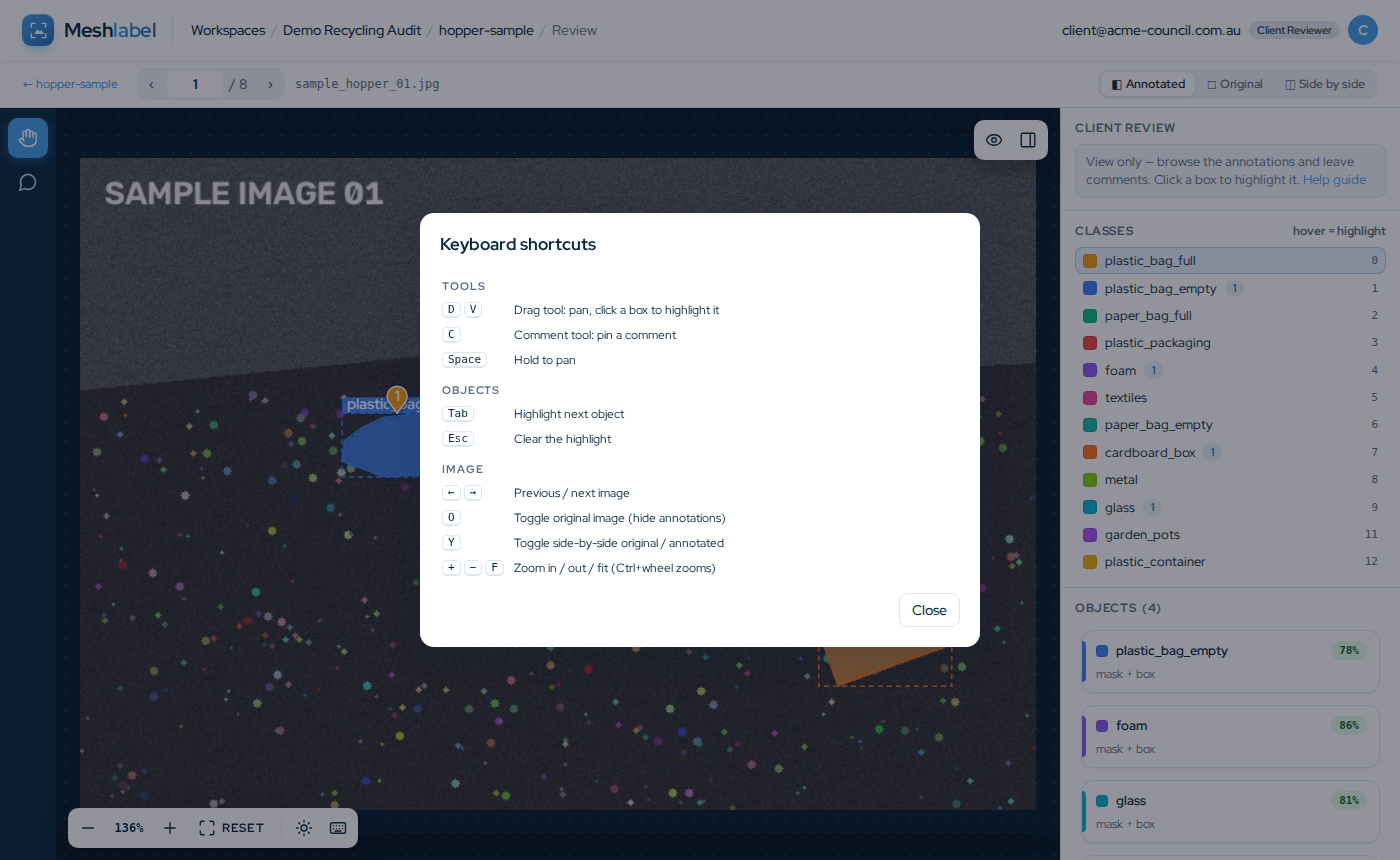
In the image viewer, press ? or the keyboard icon to see these at any time.
| ← → | Previous / next image |
| D or V | Drag tool — pan, click an object to highlight it |
| C | Comment tool — click to pin a comment |
| Space + drag | Pan with any tool |
| Tab | Highlight the next object |
| Esc | Clear the highlight / close a popup |
| O | Toggle the original image (hide annotations) |
| Y | Toggle side-by-side view |
| + − F | Zoom in / out / fit to screen |
| Ctrl + Enter | Save a pinned comment |
8Your account
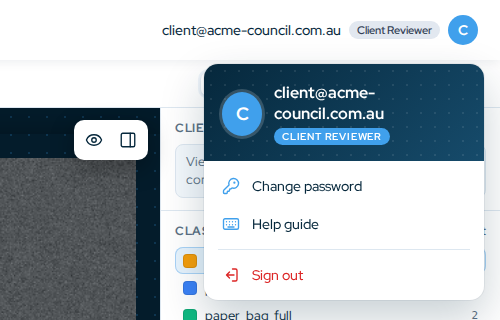
Click your name in the top-right corner for the account menu:
- Change password — enter your current password and the new one twice.
- Help guide — opens this page.
- Sign out — ends your session on this browser.
9FAQ & troubleshooting
I forgot my password
Contact your 365mesh project contact. We'll reset your access and send you a new invite or temporary password.
My invite link says it's invalid or expired
Invite links work once and expire after 14 days. If you've already accepted it, just sign in with your email address. Otherwise ask us for a new link.
It says "too many failed attempts"
After 10 wrong passwords, sign-in pauses for 15 minutes. Wait and try again, or ask us to reset your password.
I can't see a workspace or dataset I expected
You only see workspaces you've been invited to. Ask your 365mesh contact to add you.
What's the difference between the outline and the dashed box?
The filled outline is the object's mask — its exact shape. The dashed rectangle is its bounding box. Some objects only have a box. Both are part of the annotation.
What do the percentages mean?
They're the model's confidence in the label when it was proposed. Higher means the model was more certain; objects drawn by hand have no percentage.
Can I edit or delete an annotation?
No — reviewers have read-only access to annotations. Leave a pinned comment on the spot and our team will make the change.
Which browsers are supported?
Current versions of Chrome, Edge, Safari and Firefox on a laptop or desktop. A mouse or trackpad is recommended for zooming and pinning comments.
5Leaving comments
Comments go straight to our labelling team. Use them for anything — a wrong class, a missed object, a question.
Comment on a specific spot (pinned)
Comment on the whole image
Type in the Comments box in the side panel and click Add comment.
Reading and managing comments
All comments on an image are listed under Comments, newest first, with who wrote them and when. Pinned comments carry their pin number. Hover a pin on the image to highlight its comment — and hover a comment to highlight its pin. You can delete your own comments; comments from others can't be removed.
Press D (or click the hand) to go back to the Drag tool when you're done commenting.